How to create a listing

Creating your first listing on Loamy takes about 10–15 minutes. You’ll set up your business profile once, add your material details, choose how buyers receive their orders, and prepare your listing for publishing. If your account is verified, your listing goes live immediately. If verification is still pending, your listing remains in Draft. Once verification is approved, you can return to your listing and publish it.

This guide walks you through each step and explains what to expect along the way.

BEFORE YOU START

Account Verification

Loamy requires account verification before your listing can go live and before payouts can be released. You can complete all listing steps while unverified, but your listing will stay in Draft until approved.

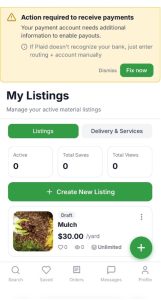
The “Set up payouts” banner appears in your Business Profile first. Once you have at least one draft listing, it also shows in Profile, My Listings, the Create Listing flow, and your Dashboard. This is intentional — a draft listing signals that you intend to sell, so Loamy surfaces it wherever you’re working.

What to expect if you’re not verified yet

  • Your listing will remain in Draft and buyers won’t see it
  • Once verification is approved, return to your listing and publish it

Flow: Draft → Verify → Publish → Live

STEP 0 of 5

Set up your business

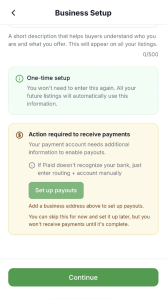
Your business profile helps buyers understand who you are and is required for verification. Add your business name, select your business address from the dropdown, and write a short description if you’d like.

You can start verification from the Set up payouts banner on this screen. If you skip it for now, you’ll see the same banner again after you create your first listing.

loamy business setup screenshot
Tap Set up payouts to begin verification. Listings stay in Draft until verification is complete.

After you tap Continue, Loamy saves your business profile and moves you to material details.

STEP 1 of 5

Add your material details

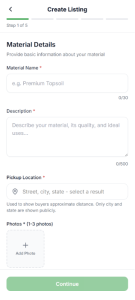
Buyers compare suppliers on this screen, so these details do the selling. Add a clear material name (3–30 characters), a short description (20–500 characters), and your pickup location. Only your city and state are shown publicly.

Upload at least one photo (up to 3).

Tip: Listings with multiple photos get significantly more views.

loamy material details screenshot
Add a clear name, a helpful description, your pickup location, and at least one photo.

Tap Continue. Loamy saves your material details and moves you to pricing.

STEP 2 of 5

Set your pricing and order options

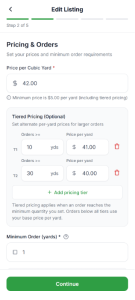
Set your price per cubic yard (minimum $5.00). To offer lower rates for larger orders, add tiered pricing. Choose your minimum order size — you can allow half-yard orders if that fits your material. To charge extra for small orders, add a small-order surcharge.

You can track inventory or leave it unlimited. Inventory tracking helps prevent overselling, but it’s optional.

loamy edit listing screenshot
Set your base price, optional tiered pricing, minimum order, and any small-order surcharge.

Tap Continue. Loamy saves your pricing and takes you to fulfillment.

STEP 3 of 5

Choose delivery or pickup

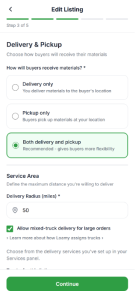
Choose how buyers receive their orders: Delivery only, Pickup only, or Both delivery and pickup.

If you don’t have trucks yet

Choose Pickup only so you can complete your listing now. You can add trucks later under Services → Add Delivery Truck, then edit your listing to enable delivery.

If you offer delivery

Set your delivery radius, attach a delivery service with at least one truck, and choose your delivery days and time windows. Delivery fees are set on the truck, not at the listing level. You can also allow mixed-truck delivery for large orders.

If you offer pickup

Set your pickup hours and add optional instructions if needed. You can also attach unload help or spreading services if you’ve set them up in your Services panel.

Choose delivery, pickup, or both. You can add trucks later if needed.

Tap Continue. Loamy saves your fulfillment settings and moves you to review.

STEP 4 of 5

Review your listing

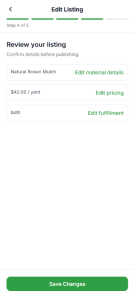
Review your material details, pricing, and fulfillment choices. Use the Edit links to make changes. This is your chance to confirm everything before submitting.

 
Review your listing details. Use the Edit links to make changes.

Tap Continue to Publish. Loamy prepares your listing for publishing.

STEP 5 of 5

Publish your listing

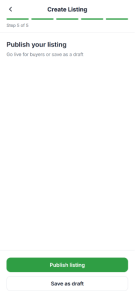
Tap Publish listing to submit your listing.

If your account is verified

Your listing goes live immediately and becomes visible to buyers.

If verification is still pending

Your listing remains in Draft. Once verification is approved, you can return to your listing and publish it.

If you’re not ready yet

Tap Save as draft and finish it later.

loamy publish your listing screenshot
The Publish screen. (When your account is unverified, a payouts banner also appears here — capture pending; see notes.)

Tap Continue to Publish. Loamy prepares your listing for publishing.

AFTER YOU PUBLISH

Managing your listing

Your listing appears under My Listings. You can edit, unpublish, duplicate, or delete it anytime.

If verification is still in progress, your listing stays in Draft and buyers can’t see it. Once approved, return to your listing and publish it.

 
Draft listings show a payouts banner until verification is complete.

You’re all set. Once your account is verified, publish your listing and buyers can place orders immediately.