How to add a delivery truck

Adding a delivery truck on Loamy is a one-time setup. You give each truck a name, a capacity, and a way of charging for delivery, and Loamy uses those details to calculate the delivery fee on every order. Any listing that offers delivery needs at least one truck attached. Pickup-only listings don’t need one.

This guide walks you through adding a truck and explains how Loamy uses it.

BEFORE YOU START

Delivery pricing and delivery range are set in different places. Delivery fees are set on the truck. The delivery radius — the maximum distance you deliver — is set on each listing when you create or edit it. A note on the truck form confirms this: “Delivery radius is set at the listing level.”

Unload help and spreading happen during delivery, so Loamy requires a delivery truck before you can offer those on-site services.

STEP 1 of 6

Open the Add Delivery Truck form

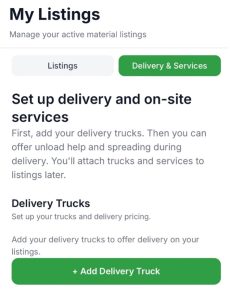
Trucks are managed from your dashboard. From your Profile, under Selling, tap My Listings to open your dashboard, then tap Delivery & Services. Under Delivery Trucks, tap + Add Delivery Truck. The Add Delivery Truck form opens.

If you haven’t added a truck yet, the section reads “Add your delivery trucks to offer delivery on your listings.” The button is the same either way.

If you’re in the middle of creating a listing

The Delivery & Pickup step offers the same form: tap Set up delivery services, or + Add Delivery Truck if your delivery service has no trucks yet. After you save the truck, Loamy takes you to your dashboard rather than back to your listing. If you’d rather not interrupt the listing flow, choose Pickup only, publish, and enable delivery later by editing the listing

Loamy set up delivery screenshot
The Delivery Trucks section of your dashboard. Trucks you add here are available to every listing.

STEP 2 of 6

Name your truck and set its capacity

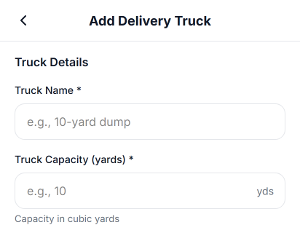
Under Truck Details, add a truck name your crew would recognize (e.g., “10-yard dump”) and the truck’s capacity in whole cubic yards.

Capacity matters at checkout. When an order is larger than one truckload, Loamy divides the order by the capacity to plan the trips. Each trip after the first is priced by the Additional Trip Fee Model you choose in this form.

Name the truck and set its capacity in cubic yards.

STEP 3 of 6

Choose a delivery fee structure

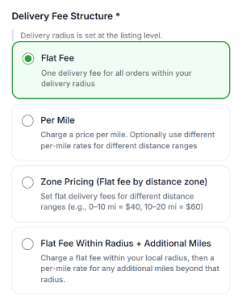
Under Delivery Fee Structure, choose how you charge for delivery with this truck and input the corresponding price.

·      Flat Fee

Charge one delivery fee for all orders within your delivery radius. Enter the Delivery Fee.

·      Per Mile

Charge a price-per-mile for every delivery. Enter your Price Per Mile. To charge different rates for different distance ranges, check Use different per-mile rates by distance and add each range with Add distance tier. A Minimum Delivery Fee (optional) keeps the fee from dropping under a set amount on short deliveries.

·      Zone Pricing (Flat fee by distance zone)

Set flat delivery fees for different distance ranges — for example, 0–10 mi = $40, 10–20 mi = $60. Tap Add distance zone for each zone, then enter the distance where the zone begins and its Delivery fee.

·      Flat Fee Within Radius + Additional Miles

Charge a flat fee within your included radius, then a per-mile rate beyond it. Enter the Flat Delivery Fee, your Included Radius (miles), and the Rate Per Additional Mile. Deliveries within the radius pay the flat fee only. Miles outside of the radius are charged at the per-mile rate.

If you use distance tiers or zones, the first row must start at 0 miles, and each row must start higher than the one before it. Only the first row can be $0. To make nearby deliveries free, add a second row where fees begin — for example, 0 miles → $0, 10 miles → $50.

Four ways to charge for delivery: flat, per mile, by zone, or flat plus additional miles.

STEP 4 of 6

Choose how additional trips are charged

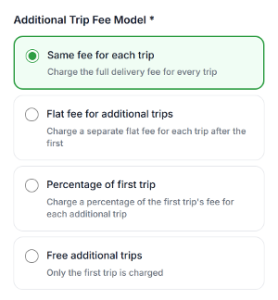
Some orders take more than one trip. The first trip is always priced by your fee structure. The Additional Trip Fee Model sets the price of each trip after it:

  • Same fee for each trip — Loamy charges the full delivery fee for every trip.
  • Flat fee for additional trips — each trip after the first costs one set amount, entered under Additional trip fee ($).
  • Percentage of first trip — each additional trip costs a share (0–100%) of the first trip’s fee.
  • Free additional trips — only the first trip is charged.
Choose how trips after the first are charged when an order takes more than one load.

STEP 5 of 6

Save your truck

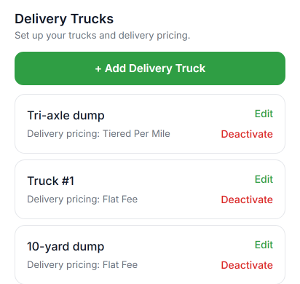
Tap Save Truck. Loamy saves the truck and returns you to the Delivery & Services tab, where the truck appears with its name and delivery pricing — “Delivery pricing: Flat Fee,” for example. New trucks are active immediately.

Loamy also names your delivery service after your first truck. If your first truck is named “Big Red,” the service is called “Big Red delivery.” Your listings use that service for delivery.

 
Saved trucks on your dashboard, each with its name, delivery pricing, and Edit and Deactivate actions.

STEP 6 of 6

Attach the truck to your listings

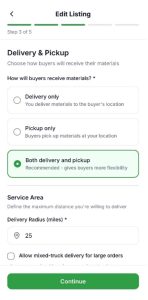
A truck carries orders only for the listings it’s attached to. On each listing’s Delivery & Pickup step, choose how buyers receive their orders: Delivery only, Pickup only, or Both delivery and pickup. If you offer delivery, set the Delivery Radius (miles) and review the trucks under Trucks for this listing. Every active truck starts checked, and at least one must stay checked.

If a listing uses all your trucks, new trucks are included automatically. If it uses a chosen subset, edit the listing to add the new truck.

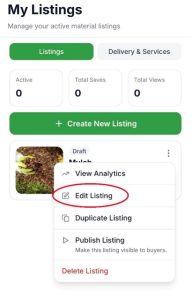
To add a truck to an existing or draft listing, go to My Listings, select an item, and click Edit Listing. Continue to Step 3 of 5 in the Edit Listing flow to update Delivery & Pickup details.

edit listing 1
editing listing 2

If an order is larger than your biggest truck

The listing setting Allow mixed-truck delivery for large orders decides how Loamy handles it. If you leave it unchecked, the same truck makes multiple trips. If you check it, Loamy can split the order across your trucks to use fewer trips.

AFTER YOU SAVE

Buyers never see your trucks — they see one delivery fee at checkout, calculated from the trucks you set up. When an order fits in one load, Loamy sends the smallest truck that can carry it. When an order needs several trips, each trip after the first is priced by your Additional Trip Fee Model.

You can edit a truck anytime: tap Edit on its card, make your changes, and tap Save Changes. To retire one, tap Deactivate and confirm. The truck no longer appears in the Delivery Trucks list, and Loamy no longer uses it for new orders. Orders already scheduled continue as planned.

Your truck is ready to deliver. You’ve set up the truck once — its capacity, its delivery fees, and its trip pricing. From here, Loamy calculates the delivery fee on every order, and you adjust pricing in one place whenever your costs change.